Most AI-generated videos are pretty easy to spot. The visuals aren't necessarily off, but the motion is generic: a fade in, a static zoom, a title that just appears. It's the same handful of default moves showing up in every tool, on every platform, in every feed. It's also the single most common complaint in the category. In Arcade's State of AI Video 2026 survey, 60% of AI video users say the same thing about the tools they already use.
The videos that look truly fresh aren't coming from a different model. They come from better prompting.
We asked our design team to break down the prompts behind four effects that we've used in recent product launch and social videos. None of them are complicated, but they create a sense of polish and intentionality that you don't typically see from AI-generated content.
A good creative director doesn't leave movement to chance. They direct it, every choice answering one question: where does the eye need to go next, and does this movement earn the extra second of attention it's asking for? The habits below are how you translate that instinct into a prompt Arcade can actually execute.
@Scene 2 or @Scene 3, so Arcade knows exactly where the direction applies.A shimmer sweep works like a spotlight. Movement pulls the eye, so a sweep of light reads as something physical, like light catching glass, instead of a canned animation.
That's why it only works on a few words, not the whole line. Save it for the phrase you actually want to land: the key phrase, the stat, the one thing worth remembering.
Prompt: "Use a dark to light shimmer on 'AI in minutes' in @scene 4"
Why it works: The prompt names the exact three words and specifies how the shimmer should behave ("dark to light").
A word-by-word reveal locks reading speed to listening speed. Reveal the full line at once and the eye finishes before the voiceover does. Timing each word to the syllable fixes that.
Use it on a hook or title line, the moment you want someone reading in the exact rhythm of the voice.
Prompt: "Make each word fade up one at a time in @Scene 1, timed to the voiceover."
Why it works: It names the mechanism (fade up, one word at a time) and locks the timing to the voiceover instead of a guess.
Beat-synced timing borrows its energy from the music instead of manufacturing its own. A cluster of icons popping in on a fixed interval feels like a slideshow, evenly spaced and mechanical.
Time each one to the beat instead so the eye and the ear land on the same rhythm. Lean on it for a cluster of small elements, an icon, a logo, a thumbnail, entering one after another on an upbeat, rhythmic track.
Prompt: "Make the .md icons in @Scene 1 pop in one by one, synced to the beat of the music."
Why it works: It ties the pacing to the music track itself instead of a fixed timer, so the reveal stays locked in even as the tempo changes.
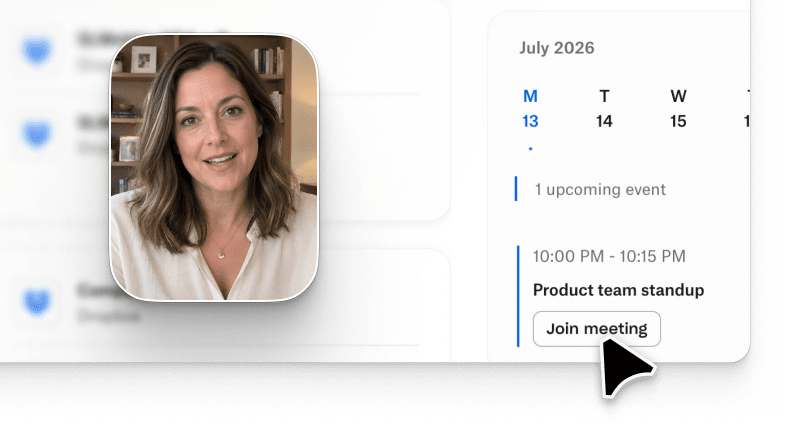
A cursor click sequence turns a CTA from something you look at into something you watch someone use. A static button just sits there while the viewer has to imagine what happens if they click it.
The squish-and-pop-back on click adds tactile feedback. Reach for it on the CTA you don't want anyone scrolling past: a "Get Started," a "Try it free," the click you want to walk someone through instead of leaving to their imagination.
Prompt: "Add a simple macOS cursor on @Scene 5, the cursor should enter from bottom right, and go over the button, click the button. On click, the button should shrink and pop again, like a push button."
Why it works: Every beat gets its own direction, where the cursor enters, what it does at the button, where it exits, so the sequence reads as a full choreography instead of a single instruction.
These four effects aren't tricks to memorize. They're the same habit, applied four ways: describe the motion, not just the moment.
The next time a video comes out looking a little generic, don't reach for a different tool. Reach for a more specific prompt. Name the scene. Describe the motion. Anchor the timing. Call out the entry and exit.
Every effect above starts the same way: in the chat, right where you're already editing your Arcade video.
A bit more intentional prompting is the difference between a video that looks AI-generated and one that looks like it had a creative director behind every choice. If you want to see everything else you can do from that same chat, our guide to editing videos in Arcade covers the rest.